This page contains useful information on do-it-yourself data recovery software. I have years of experience in using various data recovery software, file systems and developing data recovery software myself. In short if do-it-yourself data recovery is possible depends on:
- Physical condition of the media
- Nature of the damage or corruption
- Type of media (conventional hard disk drive vs solid state drive)
- Intent or non intent to delete data (specially on solid state drives)
If you are in a hurry and don’t have time to read, and still want the best shot at recovering your data then I recommend this:
I need my files back now! Can you just give me your best recommendation …
Yep. I am truly convinced that this is the most user friendly, fast and effective data recovery software
you can try. Download this:
Error! Incorrect download item id.
94% success rate – Unconditional, no questions asked, 30 day money back guarantee!
Can data be recovered using data recovery software?
The million Dollar question. You are probably looking for file recovery or data recovery software because somehow you lost access to your data. There is no straight forward answer to the question if you will be able to recover your data. To maximize your chances it’s important to be aware of these DON’Ts:
- Don’t panic. Easier said than done, I know
- Do as little as possible to the disk containing the lost, deleted data. Better said do NOTHING to the disk. As long as the operating system can access the disk there’s the chance it will do things with the disk. Do NOT run CHKDSK even when you’re advised to do so. Do not install data recovery software on the disk.
- You need to determine if the data loss is caused by physical damage. Because if so you should probably put all do it yourself attempts to recover the data on hold and leave it to a professional.
Determining physical damage
You can do this by listening mostly: Any out of the ordinary sounds/noises mean you STOP working with the disk. Your best and basically only option is to sent the disk to a professional data recovery lab.
If you can access the disk (using file recovery software, but disk access is sluggish you’re probably dealing with bad sectors. Try to determine how bad it is using a read-only hard disk diagnostic or S.M.A.R.T. utility. Sometimes it is built into the file recovery software.
If it’s not too bad you can try cloning or imaging the disk yourself. But understand that there is always the risk the disk may suddenly stop working all together. If DIY disk cloning or imaging tools get you nowhere you need to leave it to a pro.
So the disk is okay, what else ..
Data recovery is possible because the assumption is the data is still on the disk. But somehow the disk structures that normally point to data no longer do. In general a chain of disk and file system structures (also called meta data) point to your files (read more).
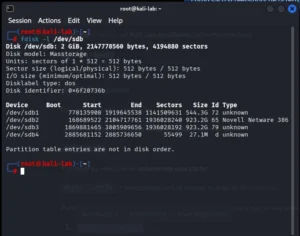
Partition Records – created when partitioning a disk
Points to specific areas on the disk. Stores start location and size (in sectors).
If your hard disk is in one big chunk, it means there is one partition.
Can data be recovered if damaged: yes

Boot Record or Sector – created when formatting a partition
Stores vital information about the size of the file system and cluster size.
Also points to vital file system structures within the volume.
Can data be recovered if damaged: yes
File System Structures – created when formatting a partition
In case of FAT: FAT (file allocation table), Root Directory -> individual directories
In case of NTFS: MFT (Master File Table), Indexes
Can data be recovered if damaged: depends
Individual Files
Can data be recovered if deleted: depends
HDD or SSD makes a big difference
As you can see I have answered yes to the question if damage to certain structure can be recovered from a couple of times. For others the answer is: depends.
Where the answer is yes it is because the damage is limited. The file system itself remains unchanged so the chance is data recovery software can find all files back. Also, as damage to these structures prevent the operating system (OS) from accessing the volume(s) there is little risk of data being accidentally written to the drive. All writes to a drive potentially overwrite data you need to recover. So, the OS not being able to do so is a good thing.
It depends ..
It however depends if data can be recovered when the file system itself was ‘reset’ by formatting or by file deletion: On a conventional hard disk drive (HDD) it entirely depends on what’s left of the data and file system structures. In general chances for data recovery are good.
If you’re using a solid state drive (SSD) however things look more grim: If data is removed by a valid operation (like deleting a file or formatting a drive) the OS notifies the SSD that data can be deleted (TRIM command) after which the data is probably truly wiped. In this case you can not recover any of the lost data using file recovery software. If the volume however became corrupt to such a degree that the OS can no longer access it (RAW file system) then you do have a chance of recovering your files.
Whether you can or can not recover data from a SSD has nothing to do with the file recovery software but with the cause for the data loss. In general, if on purpose the probably no, if because of corruption then chances are as good as on a conventional HDD.
Good vs. ‘okay’ data recovery or file recovery software
In non complex scenarios most file recovery software will produce good results. By non complex I mean that one of the above structures is affected. It is however possible that the damage or corruption is more complex and that is where you will see the ‘okay’ software starts to fail. I once ran a more complex test scenario against 10 or so more popular file recovery tools and the majority of the tools failed.
The software I endorse on this website (ReclaiMe and iRecover) passed every test I have ever thrown at it. They are also available as 64 bit versions which is another advantage over 32 bit tools when dealing with disks that contain lots of files and folders: 32 bit software has it’s limitations in this respect.
I have used 100’s of different file recovery tools and only one has blown me away: ReclaiMe File Recovery.
When we can’t rely on file system structures
In certain scenarios we can not rely on file system structures to recover data. In this case file recovery software can scan for files themselves rather than the structures pointing to them. This is called RAW recovery or file carving. Specific file types can often be detected by picking up file signatures or magic bytes. By looking at specific byte sequences to determine the start and end of for example a JPEG file, and copying everything in between to a new file, files can often be recovered.
The ‘okay’ software often falls back to this method when it can not work out file system parameters. But there is also software that employs this method by default: Most photo recovery software works like this. There are two major drawbacks to this method:
- Original file names and the directory structure are lost (most of the time)
- Fragmented files will be corrupt after recovery
More information
I do my best to regularly post or blog on the topic of data recovery and file recovery software on a regular basis. Below are the latest few: