Photo half grey, shifted or in the wrong colours? Repair corrupted JPEG photos automatically with JAR: open, analyse, repair. Free trial shows the result first.
Quick answer: A JPEG that shows grey areas, shifted bands or wrong colours still holds most of its image data. JAR – JPEG Auto Repair finds every damaged spot, puts the picture back in place and corrects its colours, in three clicks: Open, Analyse, Repair. The original file is never changed.
What this damage looks like
- The lower part of the photo is grey, or repeats one strip of the picture.
- Bands of the photo are shifted sideways, as if the picture was cut and pasted back slightly off.
- After a certain point the colours are wrong: too dark, too pink, too green.
- Only part of the photo shows; the rest is missing.
- Or just generic JPEG icon, no thumbnail.
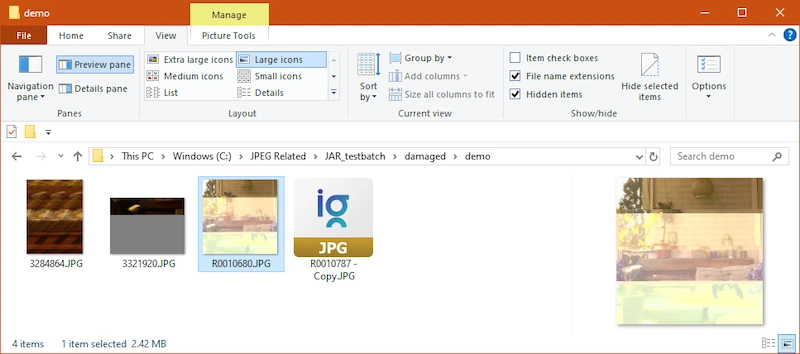
This happens when a few bytes in the file are missing, wrong or from another file: a card that was pulled out too early, a recovery program that put the file together from the wrong pieces, a faulty card reader. Everything after the damaged spot is decoded in the wrong place, and often in the wrong colour.
Repair it in three steps
- Open the photo. Start JAR, click Open… and choose the damaged JPEG, or drop it onto the JAR window. Note: If you open or drop a RAW file (CR3, NEF, etc.), JAR will extract the largest JPEG it can pull from the file instead. If the extracted JPEG looks intact, you can stop here.
- Click Analyse. JAR cleans a copy of the file and finds every damaged spot. Each one is marked with a red line on the picture and listed on the left. A large photo with a lot of damage can take a minute or more; the status line shows progress.
- Click Repair. JAR saves the repaired photo next to the original as name_auto.jpg. Click Original and Repaired to compare.
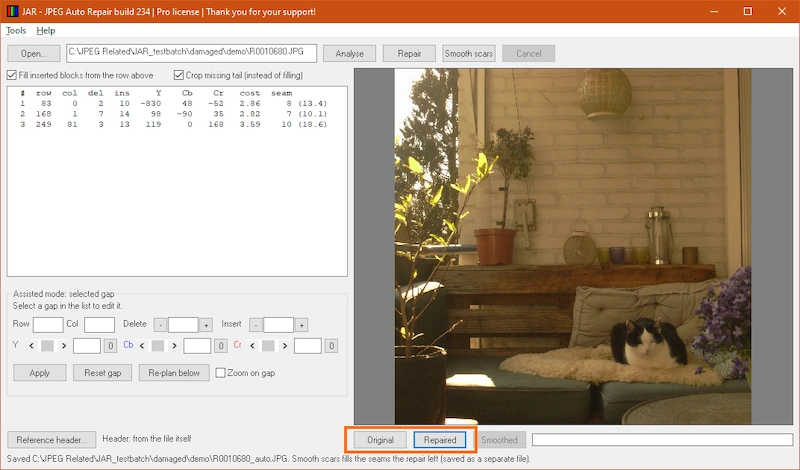
The trial shows the complete repair on screen and saves a scaled-down copy, so you can see exactly what JAR does with your photo before you buy.
Optional: smooth the scars
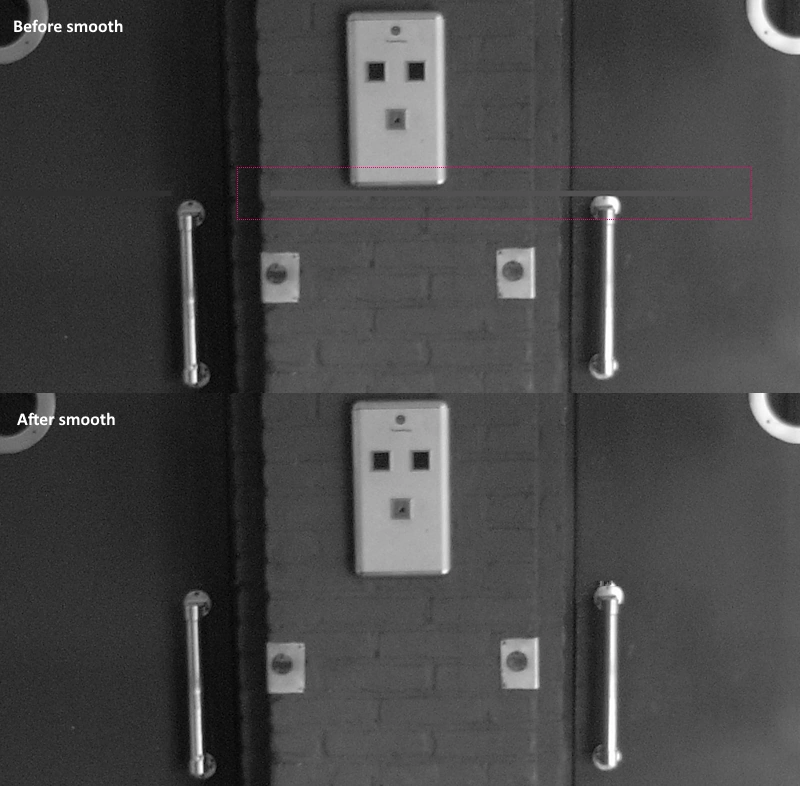
Where data was lost, JAR fills the gap with the row above it, which can leave a visible seam. After Repair, click Smooth scars: JAR fills those seams with texture from around them and saves a separate file, name_auto_smooth.jpg. Compare the two and keep the one you like best. (Home and Pro.)
When one spot is still wrong
In most photos JAR gets everything right. Now and then it misjudges one spot, usually in a plain area such as a wall or a dark background. You fix that spot by hand in assisted mode and keep everything else: see Fix a shifted or discoloured band by hand.
FAQ
Can every corrupted JPEG be repaired? No. JAR repairs what is still in the file. A photo that shows anything at all, even distorted, can usually be repaired. A file full of zeros holds nothing to repair; see Can my photo be repaired?.
Does JAR change my original photo? No. Every result is saved as a new file next to the original.
What if the photo doesn’t open at all? Then the header is often damaged. See JPEG won’t open? Repair a damaged JPEG header.
Can I repair many photos at once? Yes, with a Pro license: see Repair a folder of corrupted JPEGs.