Repair a Folder of Corrupted JPEGs in One Run
Meta description: Hundreds of corrupted photos from one card or recovery? JAR Pro repairs a whole folder of damaged JPEGs automatically, with a log you can open in Excel.
Quick answer: With a Pro license, JAR repairs every JPEG in a folder without asking questions: choose the folder, optionally a reference header, and click Start. Repairs go to a subfolder with a log that lists every photo, the result and anything worth a look. It’s made for data recovery labs and anyone with a card or a recovery full of damaged photos.
Before you start
- Put the damaged photos in one folder. JAR also picks up photos renamed by ransomware (photo.jpg.abcd).
- Set the two options in the main window: Fill inserted blocks from the row above and Crop missing tail. Batch mode uses them.
- If many photos have destroyed headers (or were hit by ransomware), have an intact photo from the same camera ready as a reference.
Repair the folder
- Choose Tools > Batch repair folder…
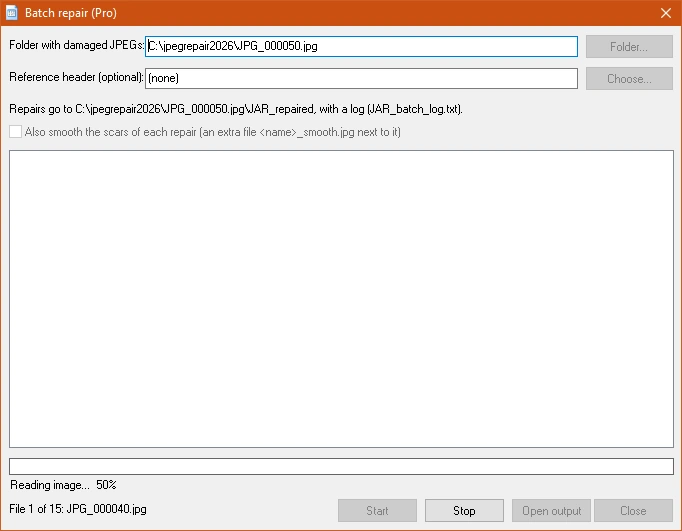
- Folder…: choose the folder with the damaged photos. JAR says how many it found and where the repairs will go.
- Optional: reference header. Click Choose… and pick an intact photo from the same camera. JAR uses it for every photo whose header it can’t repair by itself. Without one, those photos are skipped.
- Optional: Also smooth the scars of each repair. Saves a smoothed copy next to each repair. Off by default: look at those copies before you use them.
- Click Start. JAR works through the folder, photo by photo. Stop ends the run at any time.
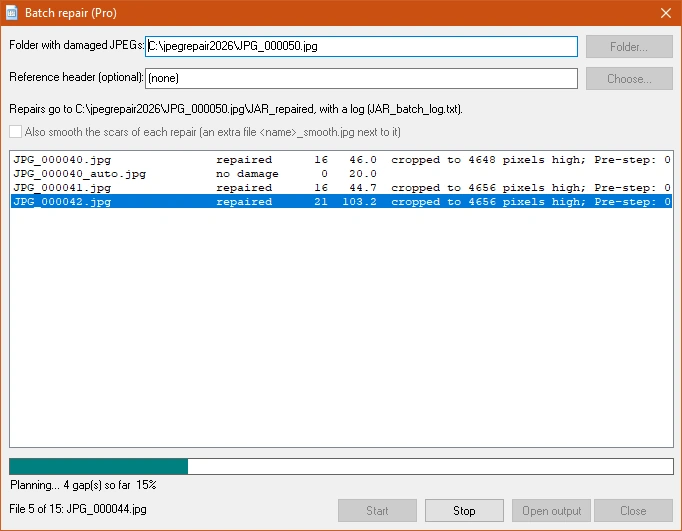
- When it’s done, click Open output.
The results
- Repairs are in the subfolder JAR_repaired, under their original names. Photos without damage are not copied.
- The log, JAR_batch_log.txt, has a line per photo: repaired, no damage, skipped or failed, the number of damaged spots, the time, and a note. It’s tab-separated, so it pastes straight into Excel.
- Notes starting with WARNING deserve a look: a stuck bit (faulty reader or drive), or rows that don’t line up (a wrong size, or data that doesn’t belong together). USB command sectors from a faulty reader are noted too.
- Skipped photos need help: a header JAR can’t repair and no reference, a progressive JPEG, a reference from another camera, or damage that needs assisted mode. Open those in the main window.
FAQ
How long does it take? From a few seconds to a minute per photo, more for large photos with a lot of damage. A large folder is something to leave running.
What does batch mode cost? It’s part of the Pro license, together with RAW extraction for whole folders.
Can I check the repairs afterwards? Yes: open any of them, or the original, in the main window. Fixing one spot by hand works there as always.
Does it change the originals? No. Everything is written to the subfolder.