

Fragmented video recovery challenges
This page is about a MP4, MOV recovery tool I am developing, and which is in it’s infant stage. No need to ask me for the tool, I will release a beta once it is ready to be released as a beta. This may be in one month or in 6 months, I simply can’t tell.
Modern cameras don’t just record video and write it sequentially to a SD or CF memory card. At the same time we see that these cards rely on exFAT file system and that in many data loss scenarios we can not rely on FAT chains being present to determine what clusters were assigned to the video file we’re trying to recover.
We used to “carve” such files: We’d find the start of the file and depending on the IQ of the carver we’d sort of guess file size (“Oh, found new file start, we should close previous file then”) or some slightly smarter tools interpret box headers, add them up, and determine size this way. With modern cameras this no longer is a viable method and I’ll try explain why.
1 – Fragmentation guaranteed
Modern cameras often “interleave” hi-res video data with lo-res video data. As it records video it saves a hi and a lo res video stream simultaneously and since it does not know in advance how much data it needs to save and buffers are finite, it needs to flush bursts of data to the memory card. So what we get is blocks <hi-res><lo-res><hi-res><lo-res><hi-res><lo-res> etc. where <hi-res> blocks belong to one file, and the <lo-res> blocks to another: Ergo, two fragmented files are the result.
As long as there’s some form of FAT or file Bitmap available this fragmentation is not an issue, but what common data loss scenarios (file deletion, accidental format) have in common is that we can not rely on such on-disk structures.
When I initially started looking into this, I thought this was the only issue I’d have to tackle but I was wrong..
2 – Out of order boxes / atoms
MP4 video files are divided into sections we call “boxes” or “atoms”.
If we look at “normal” MP4 video file see either [ftyp][moov][mdat] or [ftyp][mdat][moov] boxes.
[ftyp]we could refer to as a header of sorts[moov]is an index, a table of offsets to video data samples[mdat]is the actual video data
Theoretically it does not really matter in what order these are but usually we first find ftyp and then the mdat and moov boxes that are part of one and the same file.
And eventually video files created by modern cameras follow this convention IF and as long we can rely on some sort of file bitmap to assemble the file in the correct order. Without this bitmap we often see something different on-disk, for example: <header-less and interleaved video data>[ftyp][moov][truncated mdat box]
Cameras do so because they simply first write the video data as it is recorded and create the header (ftyp) and index data (moov) afterwards once recording stopped.
So we can see how convectional carving is bound to fail. Assuming next file follows, our on-disk and out-of-order file, a conventional carver is likely to combine the [ftyp][moov][truncated mdat] with the <header-less and interleaved video data> of the next file. But even more likely it will be confused by the [ftyp] of the lo-res video and close the file it was recovering prematurely.
Assuming 7 files, it’d look like:
<header-less and interleaved video data>[ftyp][moov][truncated mdat box]<header-less and interleaved video data>[ftyp][moov][truncated mdat box]<header-less and interleaved video data>[ftyp][moov][truncated mdat box]<header-less and interleaved video data>[ftyp][moov][truncated mdat box]<header-less and interleaved video data>[ftyp][moov][truncated mdat box]<header-less and interleaved video data>[ftyp][moov][truncated mdat box]<header-less and interleaved video data>[ftyp][moov][truncated mdat box]
A “dumb” caver may recover the green + orange part if we’re lucky, while the header-less and interleaved video data is actually part of the next file. It should have used the purple + green portion to reconstruct the file as the moov box offsets need to match the video chunks and samples. Apart from selecting green + orange part, the orange part needs to moved towards the end of the file so that moov offset point to the correct data, and the low and hi-res interleaved data needs untangled (unfragmented).
Summary
As demonstrated a carver needs to become smarter to to be able recover video recorded with modern action cameras, but also DSLR and System or Compact cameras. Not only does it need to be able to recover video data that’s fragmented due to interleaved <hi-res> and <lo-res> video “streams”, it also has to link these video streams to the corresponding [ftyp] and [moov] boxes and write the recovered file out in the correct order so that offsets within the [moov] box reference the correct data in the [mdat] box.
This is a video based on same ftyp detected at same LBA (look at filenames which are based on LBA address) and was recovered from an SD Card used in a “DJI 4 Pro”:

The left file icon is file recovered by a simple carver (I used DMDE because the filename reflects the LBA at which the file was found). Not only is it 10x too large, it does not play. The file on the right is recovered with my experimental smart MP4 carver. Because I try to make the tool as generic as possible, it does not have to be “trained” to support specific camera models unlike we see in “Disk Drill’s Advanced Camera Recovery” or “GoProRecovery”. In fact, today was the first time I tested against this DJI disk image and it simple just worked.
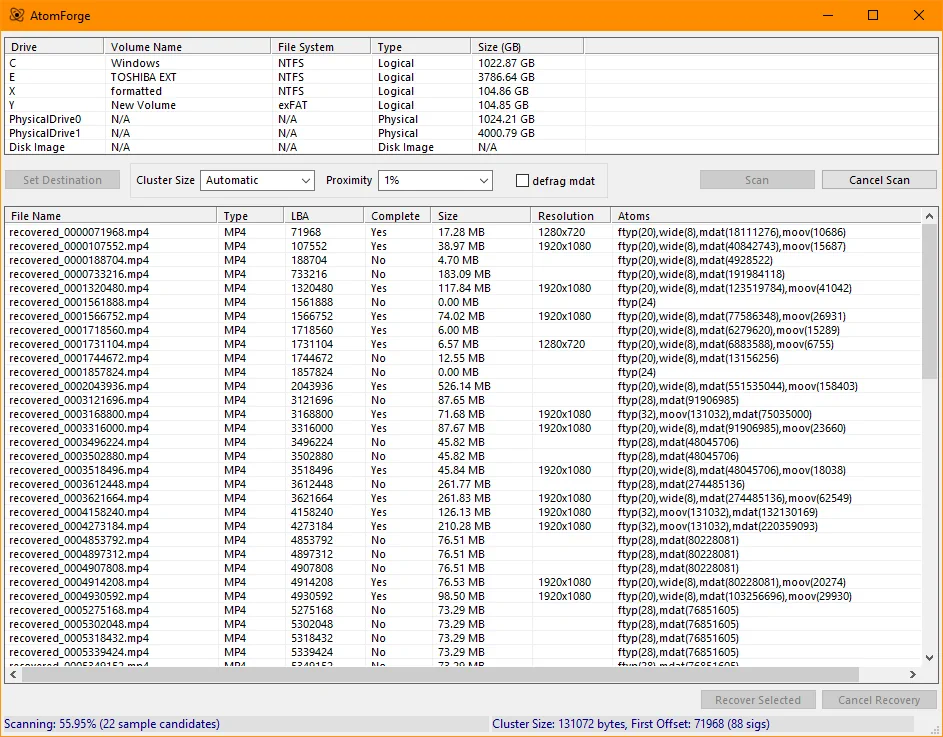
About the recovery tool (Atom-Forge?)
The tools works best with disk image of the memory card stored on a fast SSD. Currently tools goes through 3 scan phases:
- Cluster size scan: Because cluster or block size is sort of vital as cluster > sector size greatly reduces workload it’s worth to sacrifice some time determining this accurately. It is also vital as fragmentation happens at cluster level: if we find incorrect data at LBA x, then entire cluster in which LBA x is, is likely incorrect and other way around too.
- Scan for ftyp boxes + quick scan for remaining boxes. Quick scan for remaining boxes looks for boxes until it reached value as set by proximity setting. Default is 1%, depending on drive and cluster size this seems a nice balance between succes-rate and speed.
- Final scan for missing boxes but doubles value as set in proximity setting.
So, once scan finished we know clustersize and we have connected all boxes to specific files. Also scan determined whether boxes are out of order on-disk (example: <header-less and interleaved video data>[ftyp][moov][truncated mdat box]).
Only if “defrag mdat’ is set, the tool will make an effort to defrag mdat data. So some of the heavy lifting is done during the actual file recover phase. I am still tweaking this as it spends to much time on hopeless situations at this point.
What the tool can’t do
It’s not a repair tool! To produce a playable video it must be able to locate all required boxes. If for whatever reason the moov box or the ftyp box can’t be found, it will not recover a playable video unlike a tool that does so called “header-stealing” and/or generates a moov box in an untrunc manner (Klennet Carver employs these techniques). Perhaps this can be added as a future enhancement.
What it also can’t do is reassemble .insv files produced by insta360 cameras unlike Disk Drill’s Advanced Camera Recovery. My tool may be able to recover the lost video as MP4 and you may be able to reconstruct .insv files using the free Insta360 File Repair software.
How the various tools differ
I will compare how the tools differ in their approach. Of course I don’t have the source code for Klennet Carver or Disk Drill, so I’ll have to base this on my observations.
- Klennet Carver, you could describe Klennet as a “brute force tool”, it uses about every resource of the PC it can, it puts a heavy load on CPU and memory. Unless you limit it, it will use all your cores and all memory available. Running a different task next to Klennet is possible but you’ll notice it is struggling. Klennet looks at all memory of the memory card. Apart from MP4 it can reconstruct various other fragmented file types like CR2, JPEG and Office files. It may run for hours or even more than a day depending on size of card, number of files deleted and available resources. More on Klennet’s methods. Note that it appears Klennet is not actively developed at this point.
- Disk Drill‘s Advanced Video Recovery inherited it’s methods from GoProRecovery and it reconstructs files by reverse engineering how various cameras store video files. Disk Drill will therefor try discover what camera was used to create the videos and allows you do define this yourself, eg. HERO8, HERO12 etc.. Also noteworthy is that Disk Drill is a full fledged file recovery tool with comprehensive file system support, RAID support, ability to create disk images etc.. More on Disk Drill’s Advanced Camera Recovery.
- Atom-Forge tries to implement a more generic approach and rather than brute force, it’s more a rules-of-thumb and ad-hoc approach. It tries to look at patterns, it has no idea about video codecs and video data. It can not cope with complex files like Insta360 .INSV files like Disk Drill can due to it’s advanced file reverse engineering approach and it can not recover files were first few fragments are at the start of an SD Card, and the rest towards the end of the card, separated by 100 GB of disk space like Klennet. It assumes that if files became fragmented, the fragments are relatively in each-others neighborhood. But it’s scan and video file reconstruction are relatively quick, and it does not build in memory arrays to keep track of files.